What Wryte does.
Wryte holds a whole book in one window: every chapter and scene, your notes and research, and the page you’re writing. It doesn’t do footnotes, citations or screenplays, and it’s Mac only.
⌥⌘N New Text
⇧⌥⌘N New Folder
Your book down one side.
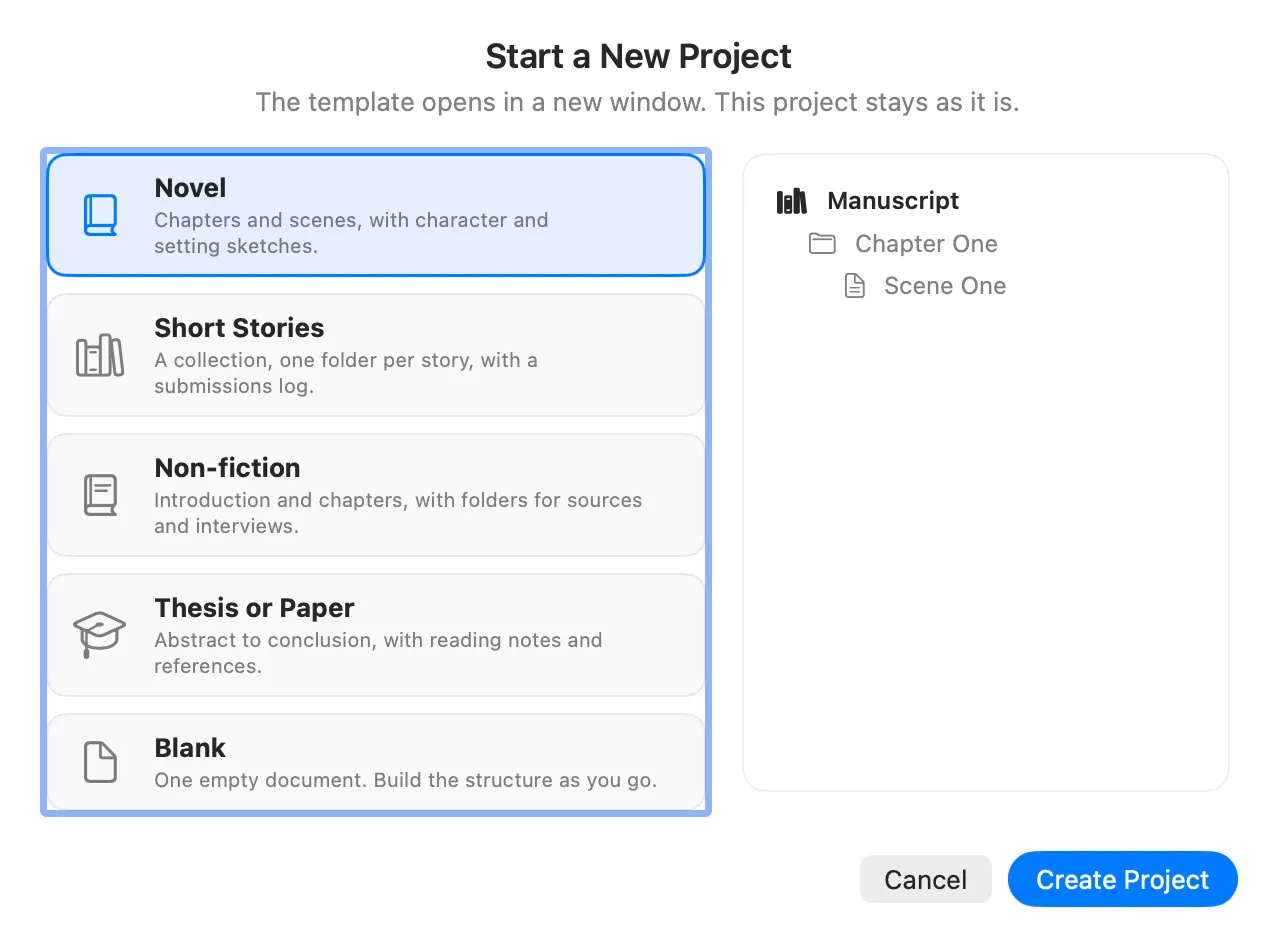
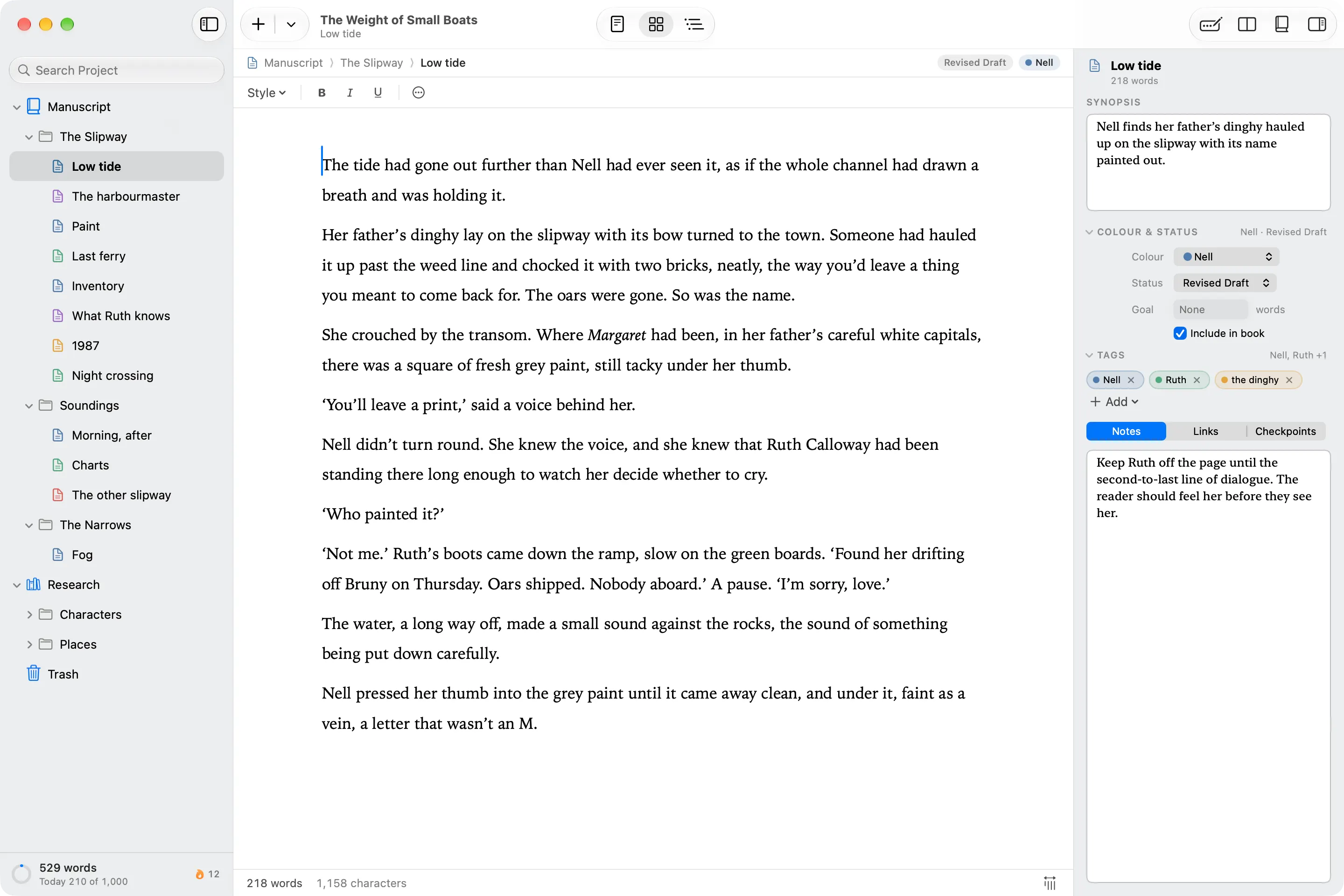
The Contents sidebar holds everything. Folders are chapters; the documents inside them are scenes. Add a scene after the one you’re in, type its name, press Return and keep writing. Drag to reorder, or move things without the mouse using ⌃⌘ and the arrow keys.
Every project starts from a template, each with a structure that suits the work: Novel, Short Stories, Non-fiction, Thesis or Paper, or a single blank page. Deleted things wait in the Trash folder until you empty it.
⌘1 Read Through
⌘2 Cards
⌘3 Outline
Read Through, Cards and Outline.
Click any folder and see what’s in it, three ways.
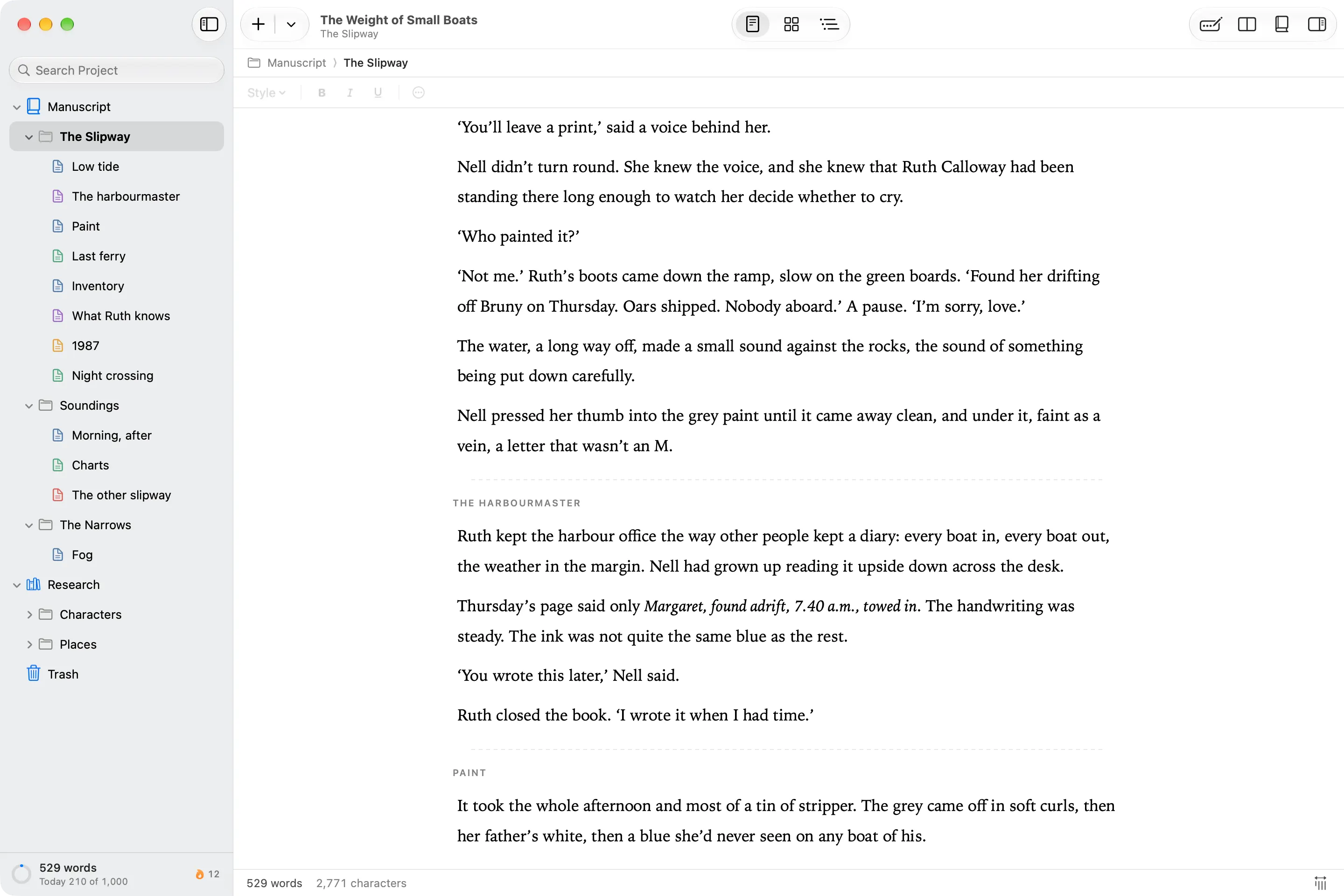
- Read Through shows the folder’s documents as one continuous text, with a heading where each chapter starts. Read a whole act the way a reader will.
- Cards pins an index card for each document to cork. Write a one-line synopsis on each, then drag the cards to reorder the scenes.
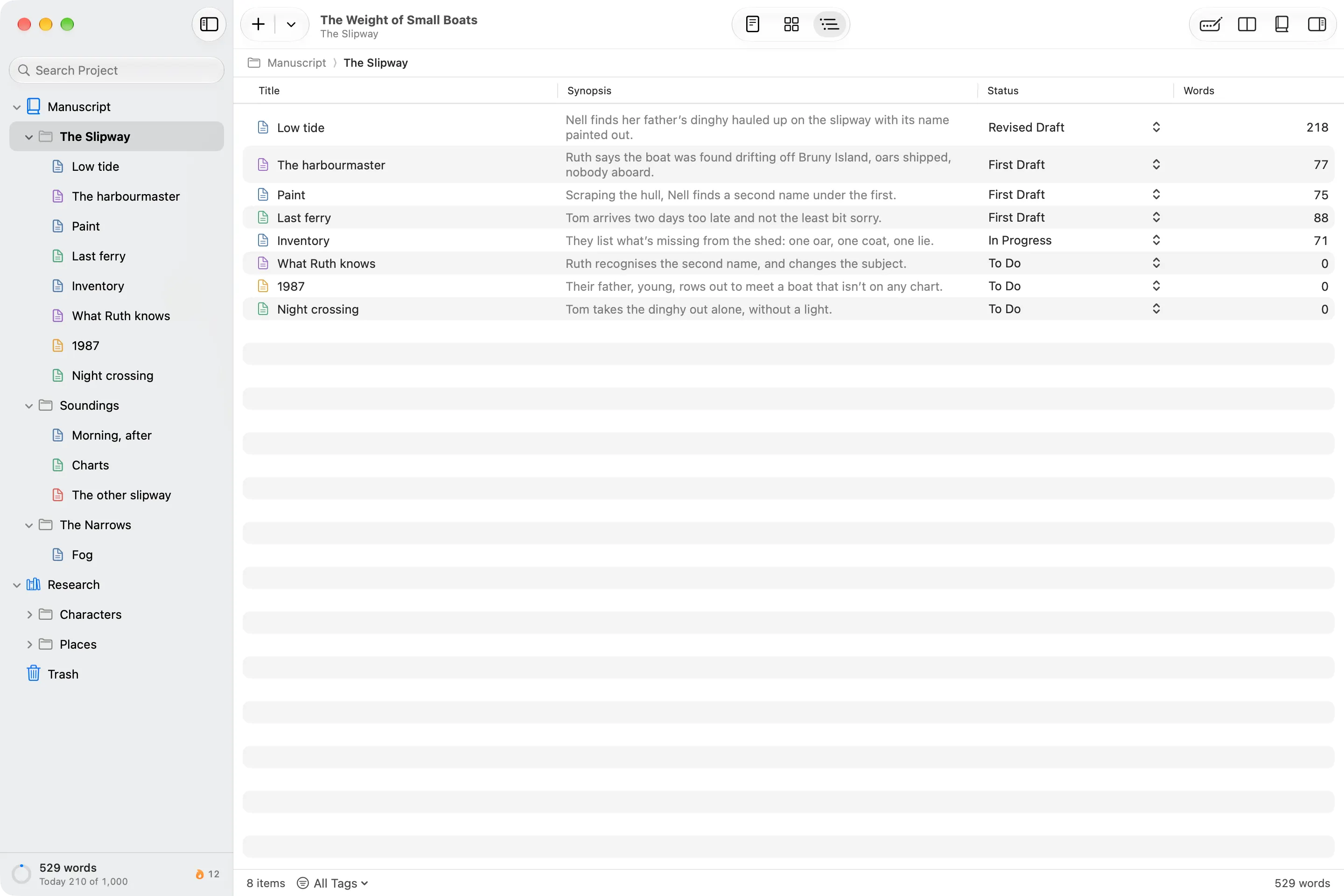
- Outline lists them with synopsis, status and word count, and you can change titles, synopses and statuses right there. Right-click a column heading to show colour, tags, goals, or when each was last changed.
⇧⌘↩ Focus Mode
⌘' Split Editor
Focus Mode and Split Editor.
Focus Mode hides everything but the page, and can fill the screen and stay dark. An empty page shows a faint prompt to help you start. More on Focus Mode.
Typewriter scrolling keeps the line you’re typing in the middle of the screen.
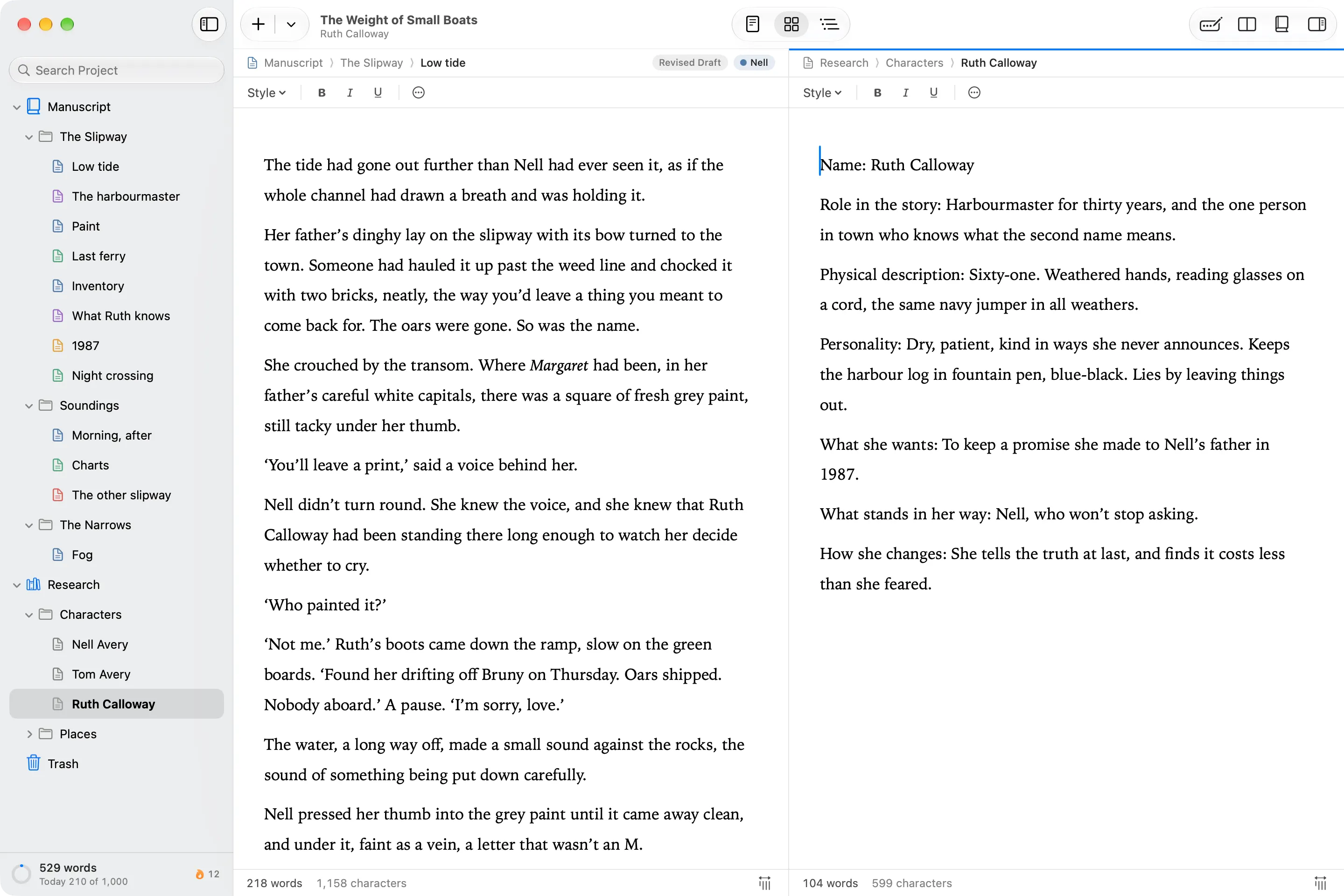
Split Editor shows a second document beside the first: a character sketch next to the scene, or two chapters at once. Stack them instead with ⌥⌘'.
⌥⌘I Details
⇧⌘F Search
Synopsis, notes and links.
Open Details beside any document for its synopsis and notes, and three ways to keep track of it:
- Colour marks it in the sidebar and on its card. Use it for anything: point of view, timeline, plot thread.
- Status says how far along it is, from To Do through First Draft to Done.
- Tags mark the characters, places or themes it involves, so you can find them later.
Type [[ to link one document to another, and click the link to go there. Details lists each document’s links and everything that links back to it.
Search finds words in every title, document, synopsis and note. Save a search as a collection to keep it up to date, or gather documents into a collection by hand.
⇧⌘I Import Files
⌥⌘L Add Web Page
Research, kept with the book.
Keep notes, sketches, PDFs, images and web pages in the Research folder, right beside your draft. Nothing in Research is exported with the book.
- Import Word, RTF, OpenDocument and plain text files as documents you can edit; PDFs and images go into Research.
- Add a web page and Wryte saves a copy, so you can read it offline.
- Drag files from Finder, or links, images and text from your browser, straight into the sidebar.
⌥⌘G Goals
Goals and writing history.
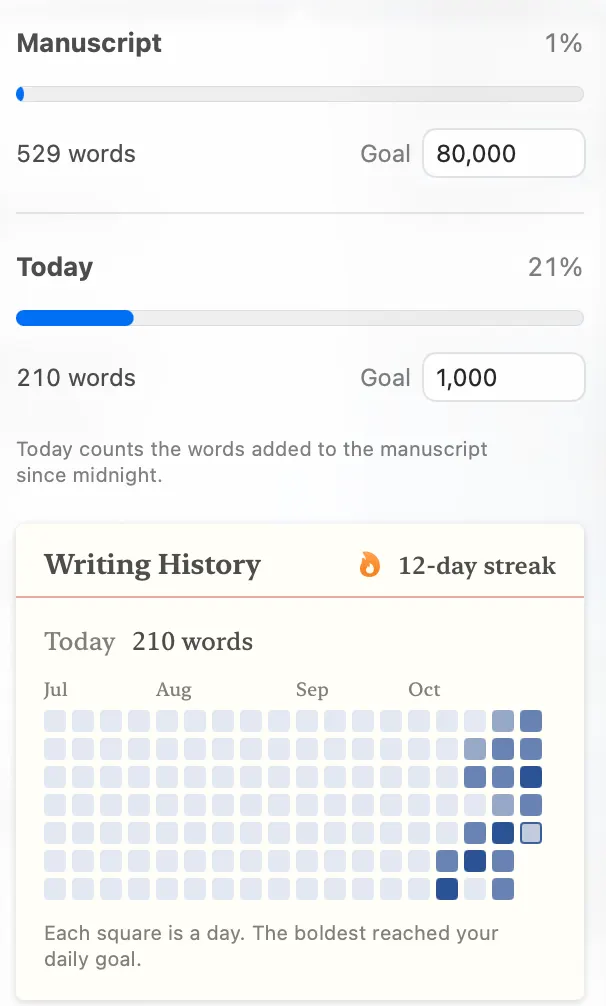
Set a goal for the whole manuscript and one for today, or give any document a goal of its own. The word count at the foot of the sidebar shows how you’re going.
Your writing history shows the days you wrote. Wryte celebrates when you reach a goal or keep a writing streak going, and you can turn that off in Settings.
⌘5 Save Checkpoint
Checkpoints and backups.
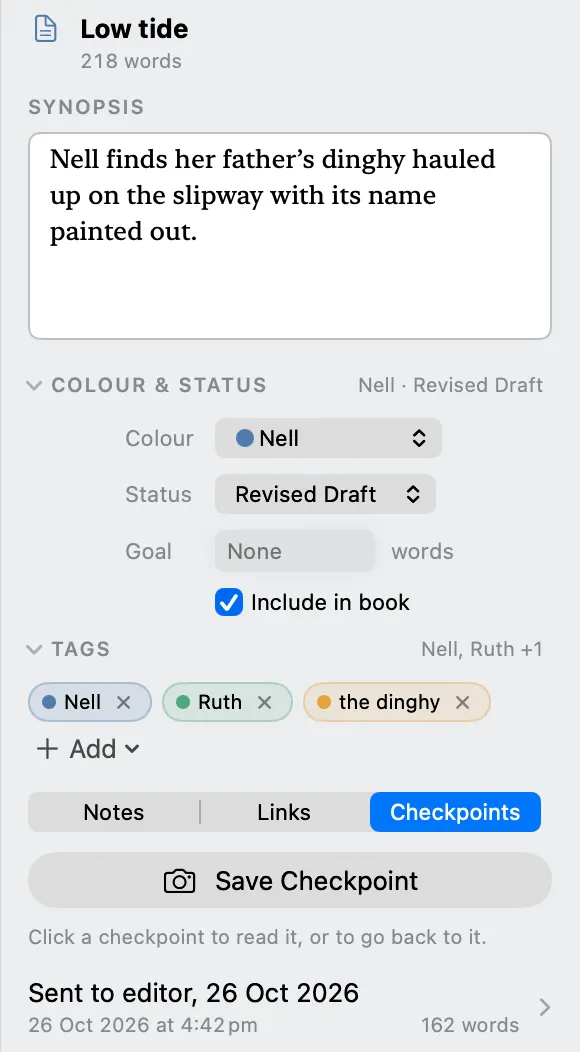
A checkpoint is a saved copy of a document. Save one before a big rewrite. Click it later to read it, and Restore to go back: your current text becomes a checkpoint first, so nothing is lost.
Wryte backs up each project automatically while you write, to iCloud Drive when you use it, or to a folder you choose. The foot of the sidebar shows when it last did, and warns you if a backup didn’t work. Restore from Backup opens an earlier version as a separate copy, so you can take what you need without touching your project.
Projects saved in iCloud Drive are there on each of your Macs. Close a project on one Mac before you open it on another.
⌥⌘E Export
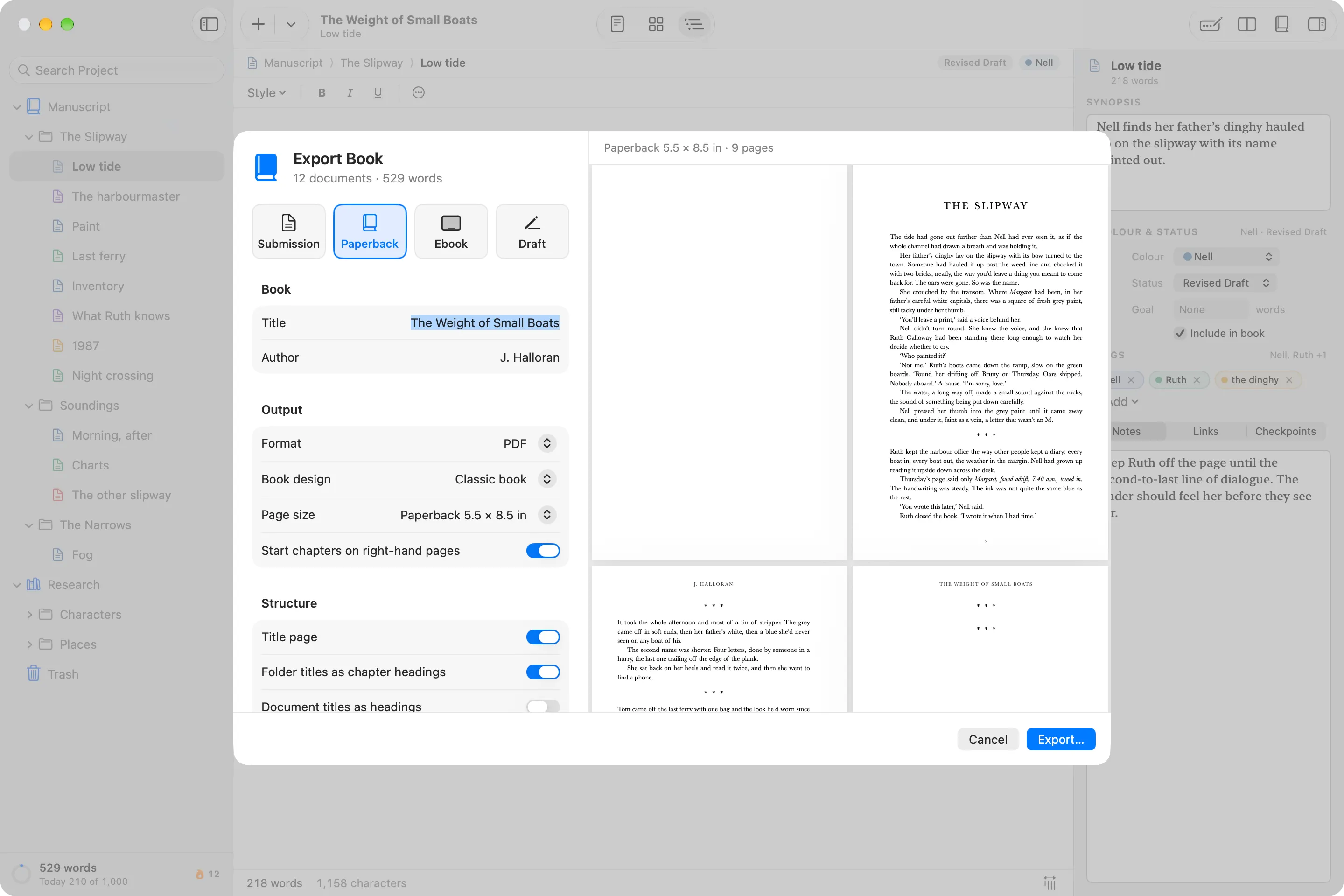
Export that shows you the result.
Export turns the Manuscript folder into a finished file, with a preview that updates as you change the settings. Folders become chapter headings. Start from one of four:
- Submission: a Word document in standard manuscript format, for agents and editors.
- Paperback: a print-ready PDF at 5 × 8, 5.5 × 8.5 or 6 × 9 inches, with mirrored margins, running heads and chapters that open on a right-hand page. See choosing a book size.
- Ebook: an EPUB for e-readers, with a cover.
- Draft: a quick PDF to read through.
Or choose any format yourself: Word, Rich Text, PDF, EPUB, Markdown, plain text or a web page. To leave a document out of the book, untick it.
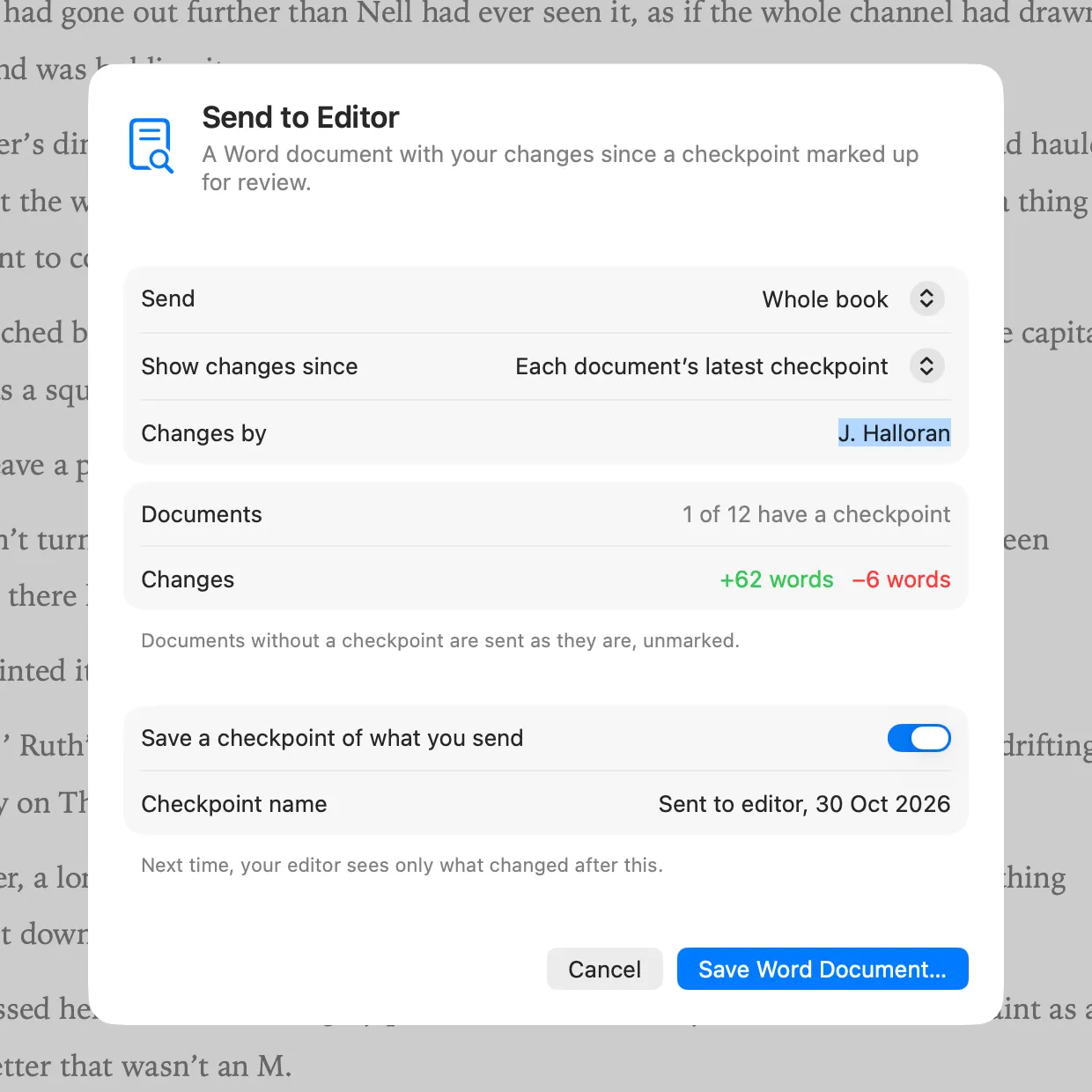
⇧⌥⌘E Send to Editor
Send to Editor.
Choose a checkpoint, and Wryte makes a Word document with everything you’ve changed since then marked as tracked changes, so your editor sees exactly what’s new. It saves a checkpoint of what you send, so next time only the newer changes are marked.
Low tide.docx · tracked changes since the checkpoint of 26 October
Her father’s dinghy lay on the slipway with its bow turned to the town. Someone had hauled it up past the weed line and chocked it with two bricks, carefully, as if they meant to come backneatly, the way you’d leave a thing you meant to come back for. The oars were gone. So was the name.
She crouched by the transom. Where Margaret had been, in her father’s careful white capitals, there was a square of fresh grey paint that hadn’t been there on Sunday, still tacky under her thumb.
⌘? Wryte Help
Privacy, keyboard and VoiceOver.
Wryte has no AI, uploads nothing and needs no account. Read the privacy promise.
Everything works from the keyboard, and with VoiceOver. Built-in Help is short, searchable and stays open beside your project.